
How to Schedule Social Media Posts With MCP From ChatGPT or Claude
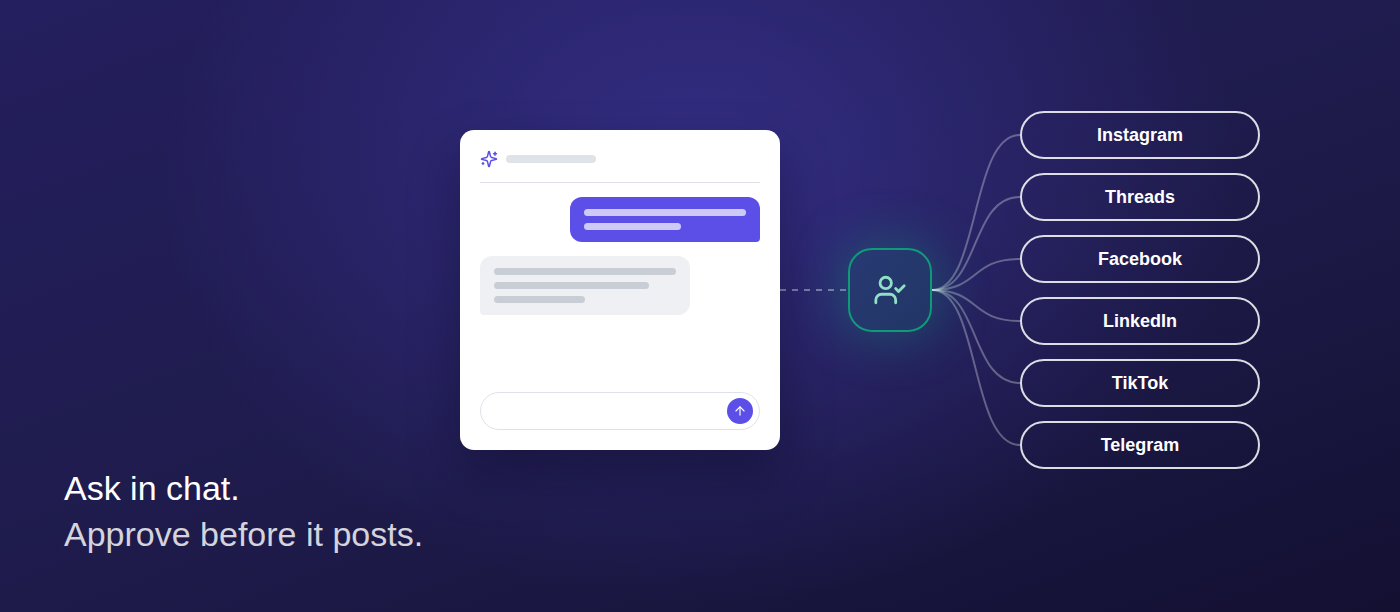
You can ask ChatGPT or Claude to write a week of social posts and have them land in your scheduling queue, ready for review. No copy and paste, no API key, no extra tool to learn. This guide walks through the setup once, then shows what a first request looks like. It takes about five minutes.
What you need before you start
- A Flomixy account with at least one connected social account. If you haven’t connected one yet, do that first from the Accounts page.
- A ChatGPT or Claude plan that supports connectors or apps. The exact menu name differs by plan, and your workspace admin may need to switch it on for a team plan.
- The right to connect an account to your workspace. Whoever owns the workspace can add you if you can’t.
Step 1: Add Flomixy as an app or connector
In ChatGPT, open the Apps or Connectors settings. In Claude, open Settings and go to Connectors. Choose Flomixy if it’s listed (the Claude setup page and the ChatGPT setup page list each click), or add it as a custom connector with the server address from the setup guide. Flomixy’s tools are exposed through an MCP server, which is the standard both assistants use to talk to outside apps.
Step 2: Connect and approve access
Click Connect. You’ll be sent to a normal Flomixy sign-in page, then to an OAuth consent screen that lists what the assistant is asking to do. Sign in as you always do, review the screen and approve. That is the whole authentication step: there is no API key to generate, copy or paste anywhere.
Step 3: Choose the workspace
If you belong to more than one workspace or brand, pick the one the assistant should work in. Everything it reads and creates stays inside that workspace, so an agency can connect one client’s workspace at a time and keep the rest out of reach.
Step 4: Ask for your first draft
Start small and be specific about the network and the time. For example:
- “Write three Instagram captions about our spring menu and propose a time for each on Thursday morning.”
- “Draft a LinkedIn post and a Threads post announcing our new office hours, and find the next free slot for each.”
- “Look at my connected accounts and tell me which networks I can post to, and what the caption limits are.”
The assistant checks your connected accounts and each network’s limits first, so a caption isn’t rejected later for being too long. It then creates the posts in Flomixy as drafts or scheduled items, with the times it proposed.
Step 5: Review and approve in Flomixy
Open the review queue in Flomixy. Every post the assistant creates waits there for a person to approve it, and the assistant has no tool to approve or reject anything itself. You can edit the caption, change the time, add or swap media, and then approve. The reason it works this way, and what the one locked exception is, is covered in why AI agents shouldn’t publish on their own.
Which networks it covers
The assistant can create posts for Instagram, Threads, Facebook, LinkedIn, TikTok and Telegram, one network at a time or several in one request. Capabilities differ by network (TikTok needs video, for instance), and the assistant can look those up before it writes. If you also use Gemini, Cursor or an automation tool such as n8n, they can connect to the same server too, though this guide only covers ChatGPT and Claude.
Tips for better results
- Name the brand, the network and the tone in the same message. Fewer assumptions mean fewer rewrites.
- Ask for a batch (a week of posts) rather than one post at a time, then review them together.
- Tell the assistant to use your saved hashtag sets instead of inventing new ones.
- If you manage several clients, keep one chat per workspace so drafts don’t mix.
- Use the review queue as your safety net. If you run a larger operation, a proper client approval workflow still applies to anything the assistant drafts.
Once the connection is set up, the same chat can also pull performance data and list which posts are waiting for review. If you publish to many networks, our guide to cross-posting without copy and paste covers how to adapt one idea for each. For the short version of the setup, see social media scheduling for AI agents.
Can ChatGPT schedule Instagram posts?
Yes. Once you add Flomixy as an app or connector in ChatGPT, it can create drafts and propose a publish time. Telegram is available now, and Instagram is in platform review. The post then waits in Flomixy for a person to approve it before it goes out.
Can Claude post to social media?
Claude can create and schedule posts for Telegram through the Flomixy connector today, and for Instagram, Threads, Facebook, LinkedIn and TikTok once they clear platform review. Each post is held in the review queue until you approve it.
Do I need an API key?
No. ChatGPT and Claude connect with a normal Flomixy sign-in and an OAuth consent screen, so there is nothing to copy. API keys exist for agent frameworks and automations, but they aren’t needed for these two assistants.
Can the assistant approve its own posts?
No. There is no approval tool on the assistant’s side. It can read the status of an approval and a reviewer’s notes, but only a person can approve a post.
What if I connect the wrong workspace?
Disconnect Flomixy in the assistant’s connector settings and connect again, choosing the right workspace on the consent step. Posts already created stay in the workspace where they were made.
